Setting Up K9 AntiSpam to Work With My DAConsultNet.com Email Account
To set up K9 antispam for use with your DAConsultNet.com email account, follow these steps:
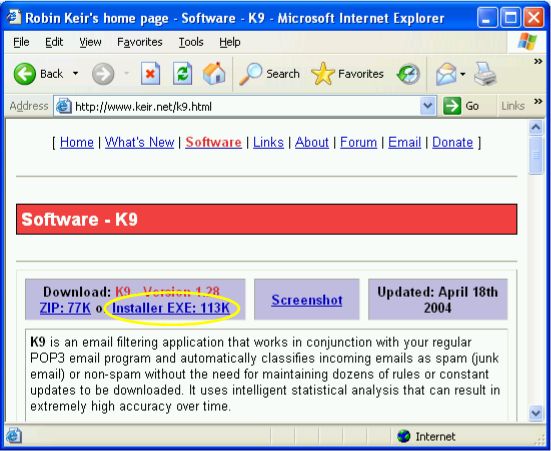
- Download K9
AntiSpam
(popup). Click the "Installer .EXE" version, not the .ZIP version.
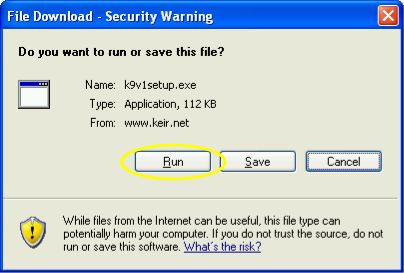
- It will ask you whether to run or save the program. Click Run.
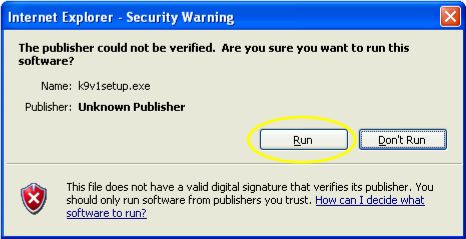
- If you have Windows XP, you might get a second box asking whether or not
to run the program you've downloaded. If you do, click Run.
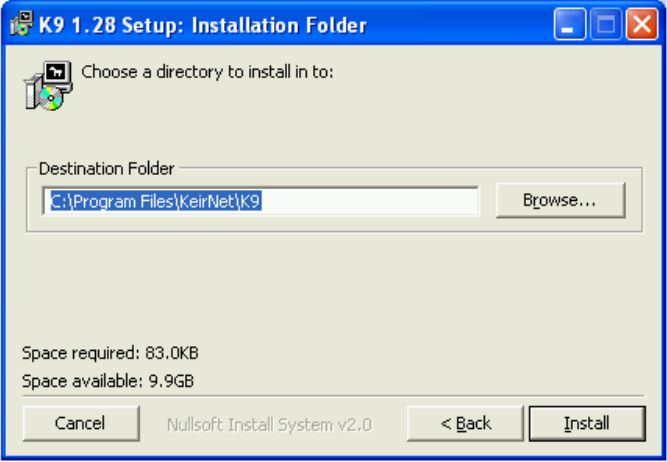
- Click Next, then Install.
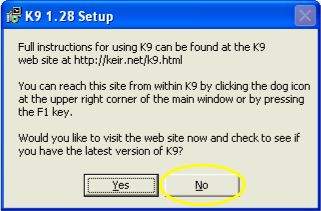
- Since you've just come from the K9 site, click No.
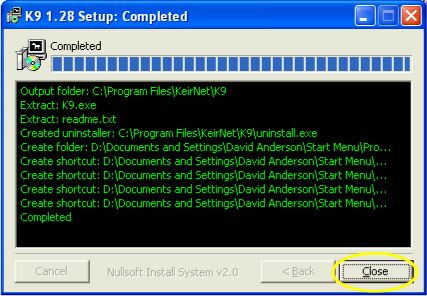
- Click Close, and K9 is now installed.
- Click Start, point to Programs (or All Programs), then point to Startup, and click "Launch K9".
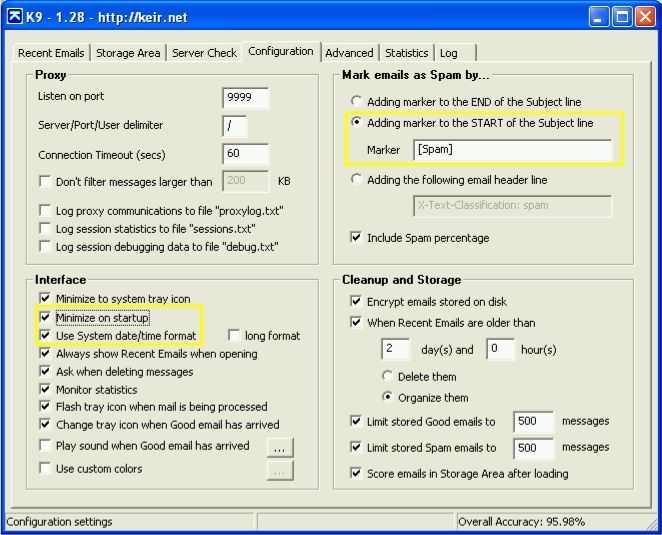
- Click the Configuration tab and set the settings as shown in the yellow
boxes. The others should be according to their defaults.
- Now, open Outlook Express or other email client program.
- After it opens, click Tools, then Accounts. If you don't use Outlook
Express, consult your email client's documentation to find out how to get to
the Account Settings.
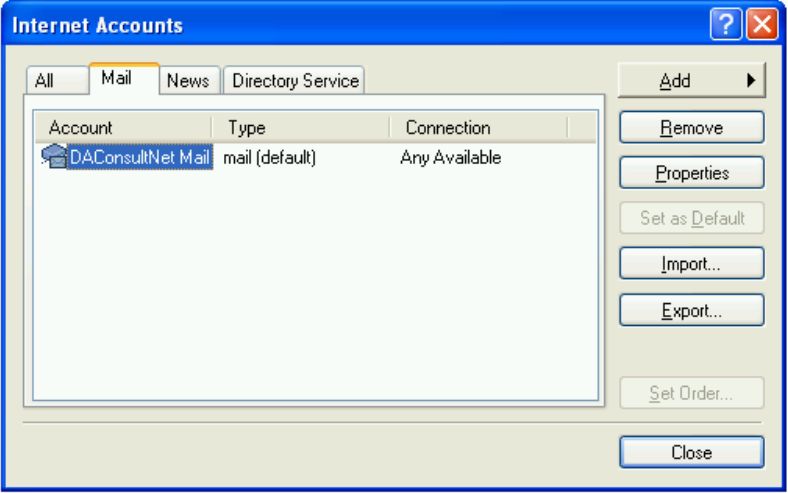
- Click your DAConsultNet email address, then click Properties. This
window will open.
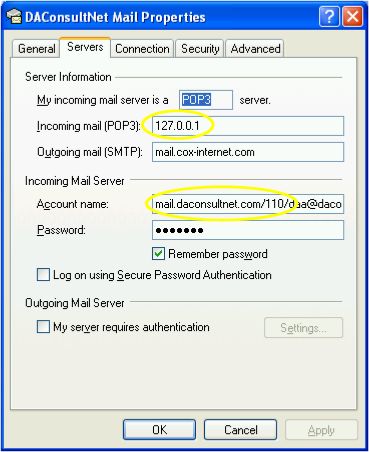
- Click the Servers Tab. Change the Incoming Mail server address to 127.0.0.1
- The Account Name will need to have "mail.daconsultnet.com/110/" added in front of your email address. Click Account Name, then press the keyboard key labeled "Home". Then you can add "mail.daconsultnet.com/110/" as shown.
- Click the Advanced tab and set the number circled in yellow as shown.
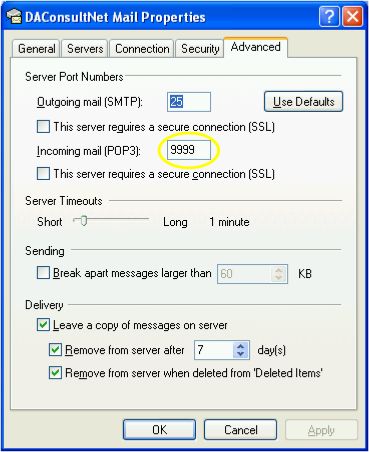
- You may set the Delivery section if desired, but this is not necessary to get K9 to work.
- Click OK, then click Close to return to Outlook Express.
Congratulations, you've configured your mail to be received through K9. It learns from you which messages are spam and its accuracy will grow over time, but we're not quite finished yet. We need to make a Spam folder where we'll deliver messages K9 thinks are spam, then create a rule that lets Outlook Express file spam messages in the spam folder. Let's create the folder.
- In Outlook Express, click File. Point to Folder and then click New to
open the Create Folder dialog.
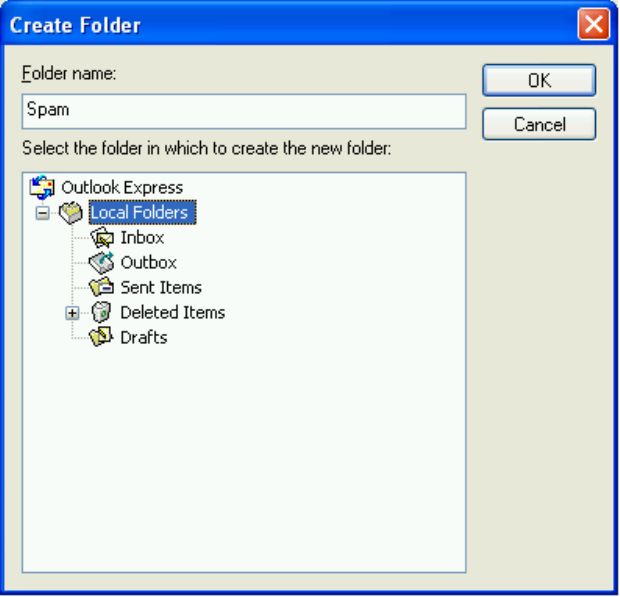
- In the Folder Name box, type Spam
- Click Local Folders in the box labeled "Select the folder in which to create the new folder"
- Click OK.
Now, let's create the rule.
- Click Tools.
- Point to Message Rules, then click "Mail..."
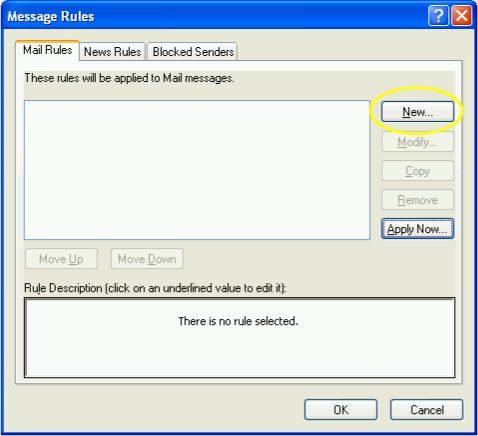
- Click New.
- Under "Select the conditions for your rule", check "Where the Subject line contains specific words"
- Under "Select the Actions for your rule", check "Move it to the specified folder".
- (Optional) Scroll down and choose the Action "Mark it as read"
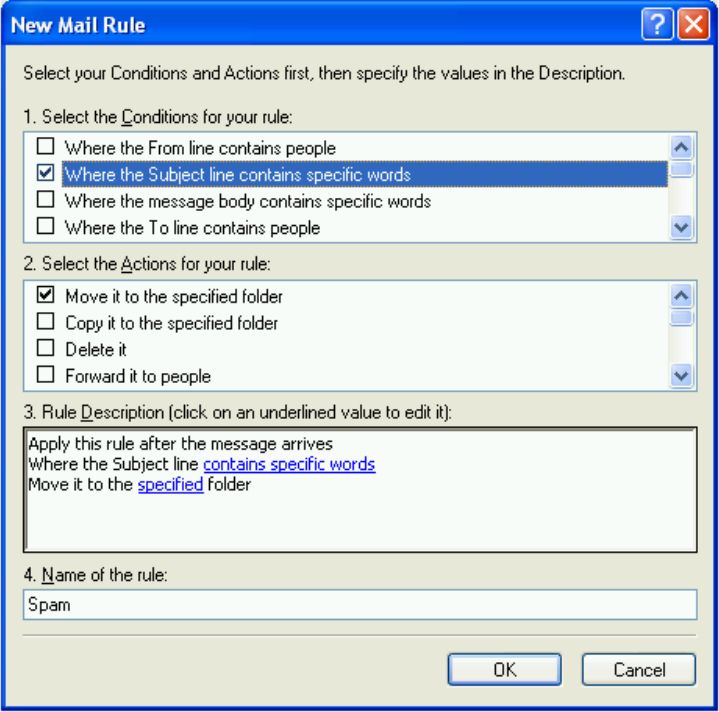
- In Box 3, "Rule Description" click the underlined phrase "contains specific words"
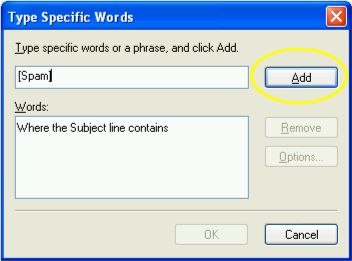
- In the Type Specific Words box, type "[Spam]", with the square brackets, but not the quotation marks.
- Click Add, then click OK.
- In Box 3, "Rule Description", click the underlined word "specified"
- In the Move dialog, click Spam and then click OK.
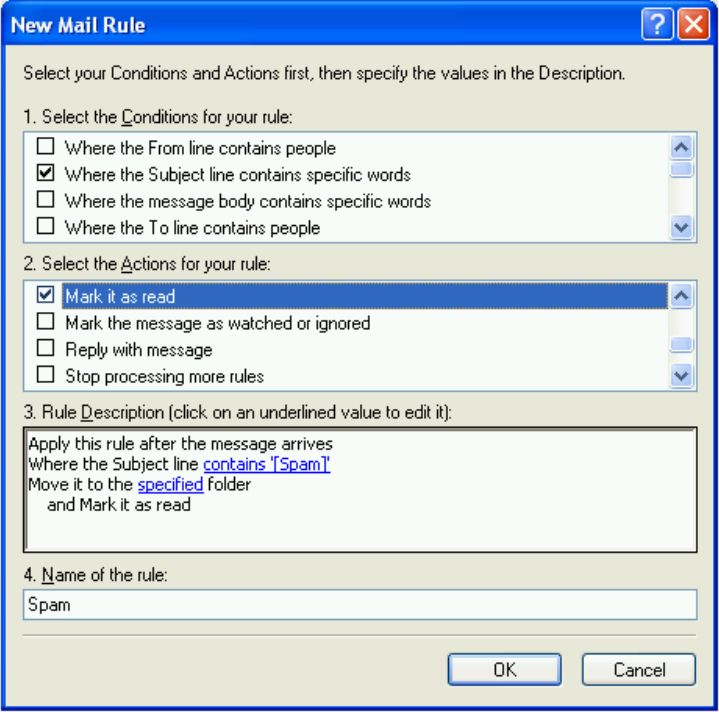
- In Box 4, name the rule however you want.
- Click OK, then click OK.
You are now ready to go. K9 will catch a lot of spam, but not all of it.
- Double-click the K9 icon in the taskbar.
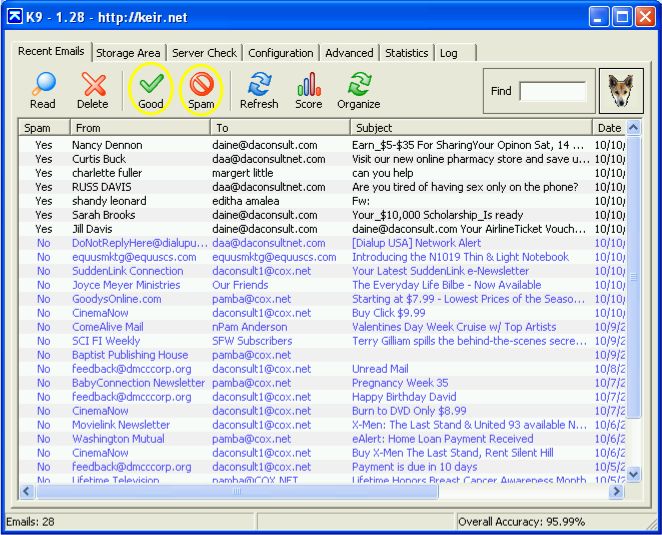
- Click the Recent Emails tab. The "Yes" or "No" at the beginning of each line shows you whether K9 thinks the message is spam.
- If a message has been incorrectly classified, click the message and
click either the "Spam" or "Good" buttons to correct K9's understanding.
This won't change where Outlook Express has put the message, but future
messages will be more likely to be correctly identified.